A recent LiquidFiles update has changed how accessing a document works. Rather than signing in, you'll now be requested to enter in a Secure Token (password). More information on this change can be found below.
## Instructions 1\. An employee of Convyta Partners will send you documents via the LiquidFiles services. You'll receive the following email message. Click **Download Attached** Files, to download the files.Please note the sender of this message will be
The email address must match the address the company representative sent the files to. If receiving forwarded email messages, please ensure the correct email address is entered.
[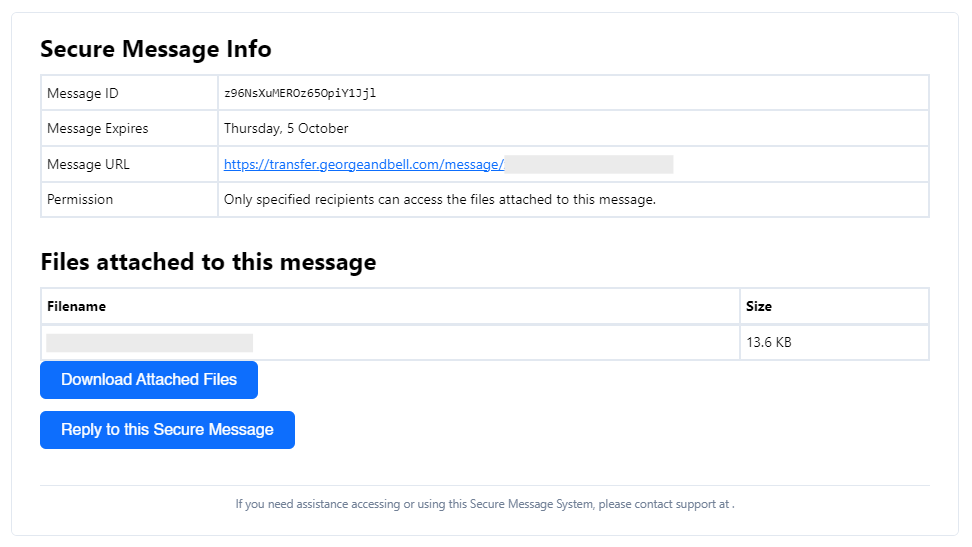](https://docs.convyta.com/uploads/images/gallery/2023-09/receive-files-securely-p1.png) 2\. A browser window will appear requesting that you enter in your email address. Once entered, select **Authorize**. [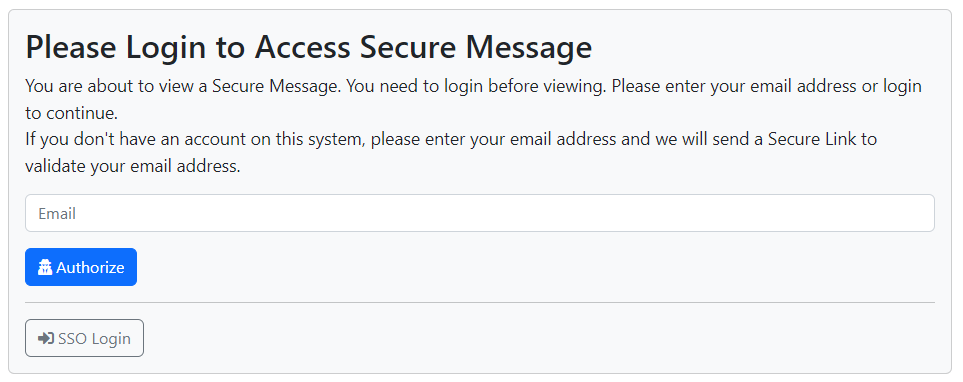](https://docs.convyta.com/uploads/images/gallery/2023-09/receive-files-securely-p2.png) 3\. LiquidFiles will confirm the email address is valid and send a Secure Token (password) to your email address. [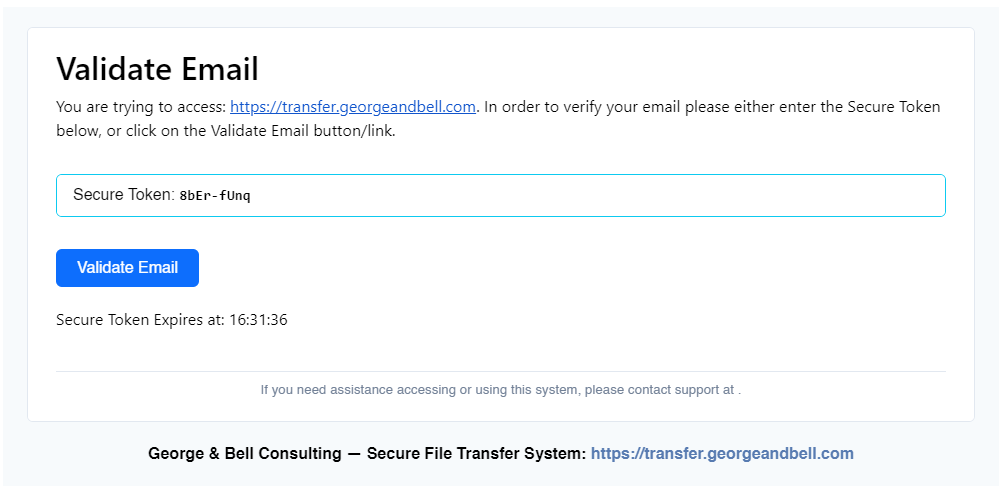](https://docs.convyta.com/uploads/images/gallery/2023-09/receive-files-securely-p5.png) 4\. Please enter in the received password into the provided box and select **Verify**. [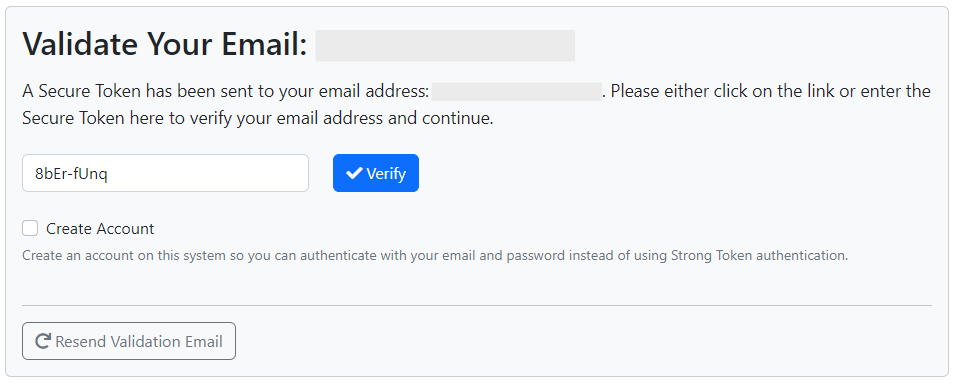](https://docs.convyta.com/uploads/images/gallery/2023-09/receive-files-securely-p3.png) 5\. If correct, links to all send files will be presented. Please click the **Download** button beside each file to download. [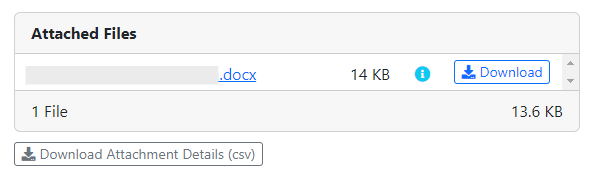](https://docs.convyta.com/uploads/images/gallery/2023-09/receive-files-securely-p4.png) The files have been successfully downloaded onto your device. # Sending Documents This guide will walk you through sending confidential documents securely to a Convyta Partners representative through a services called LiquidFiles. ## Instructions After a company representative has initiated a File Request, you will receive an email request with a link to upload the documents. On receiving this message, click **Send Requested Files**. [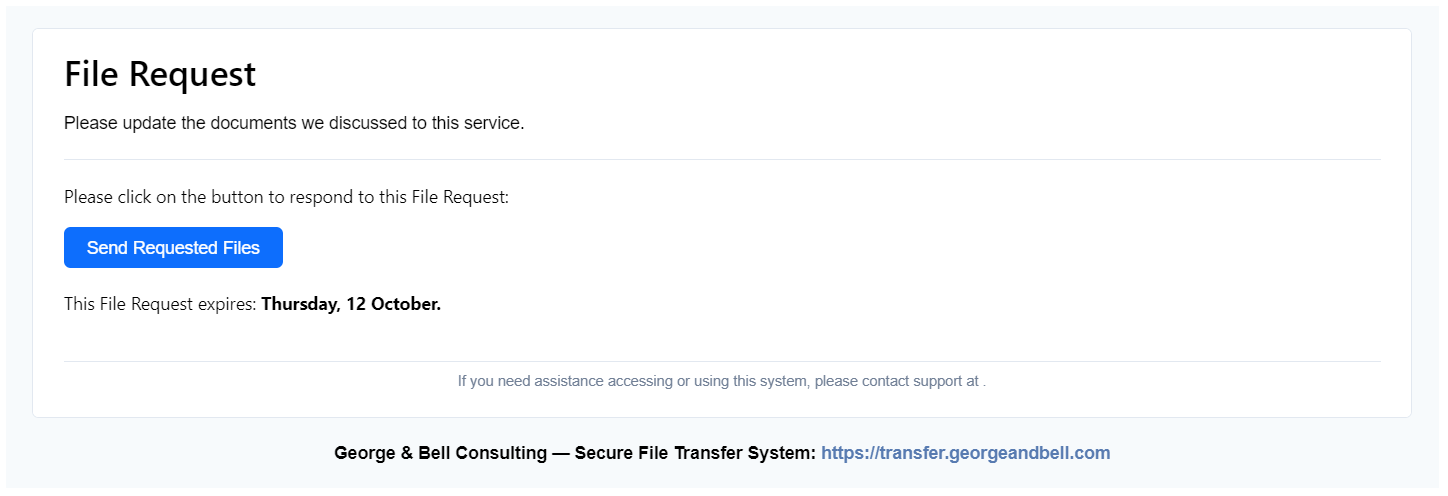](https://docs.convyta.com/uploads/images/gallery/2023-09/sending-documents-p1.png) Feel free to write a message back to the company representative. To upload the documents, please either drag-and-drop the files over the *Drop Files Here* section or select **Add Files...**Please note the total size of all documents may not exceed 10GB and the following extensions are blocked: exe, vbs, pif, bat, cmd, com and cpl.
[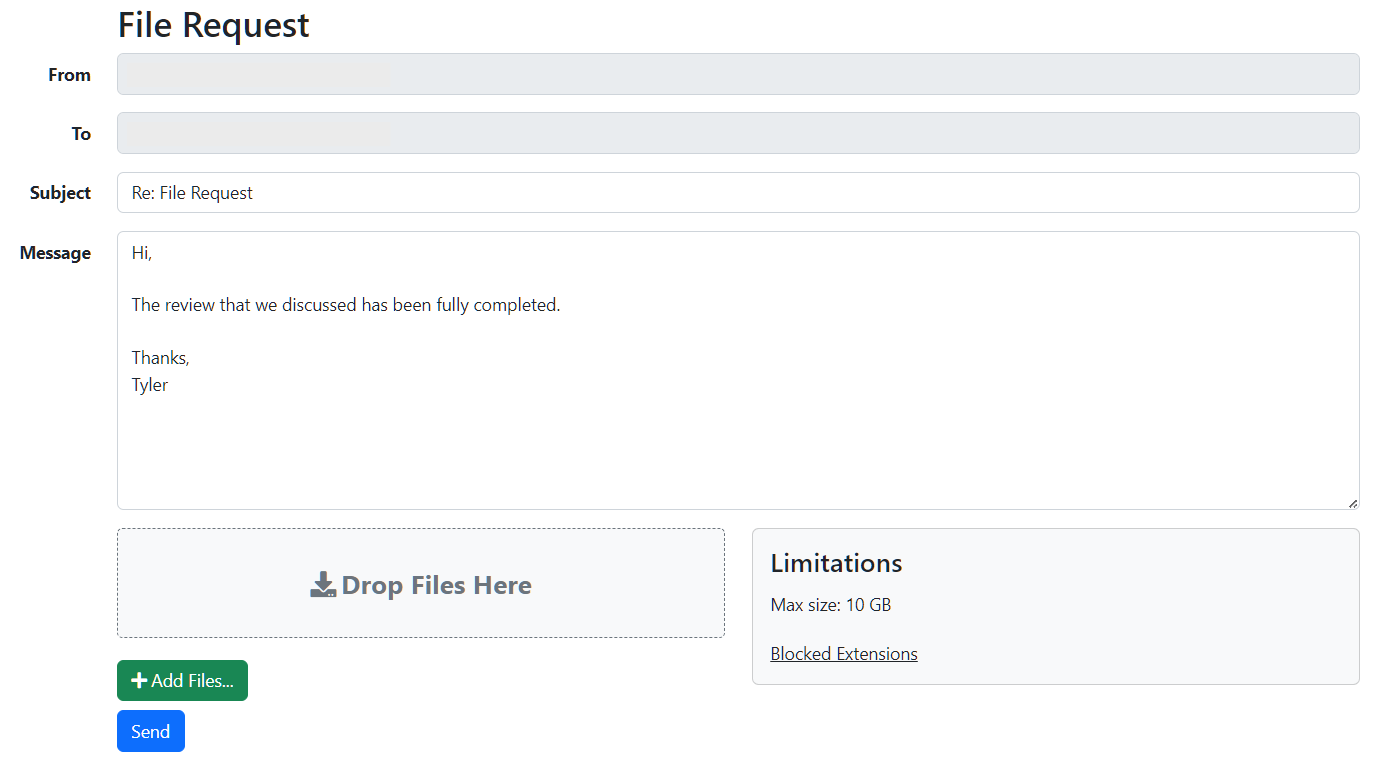](https://docs.convyta.com/uploads/images/gallery/2023-10/sending-documents-p2.png) Once the files have been successfully attached, they will appear at the bottom of the page. Please check and confirm the files are correct. [](https://docs.convyta.com/uploads/images/gallery/2023-09/sending-documents-p3.png) When ready, select **Send** to send the files to the company representative. The LiquidFiles service will upload all selected files. [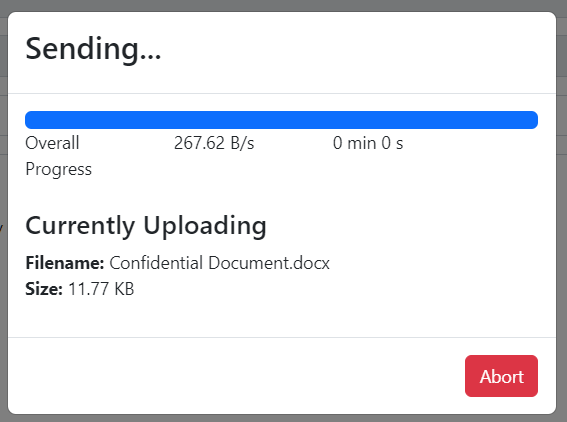](https://docs.convyta.com/uploads/images/gallery/2023-09/sending-documents-p4.png) Once all files have been successfully uploaded, The following message will be displayed: [](https://docs.convyta.com/uploads/images/gallery/2023-09/sending-documents-p5.png) The company representative will now be informed that the files have been uploaded and are available.